Also on CyberFence: compare CyberFence to other VPNs side-by-side · how CyberFence compares to ExpressVPN .
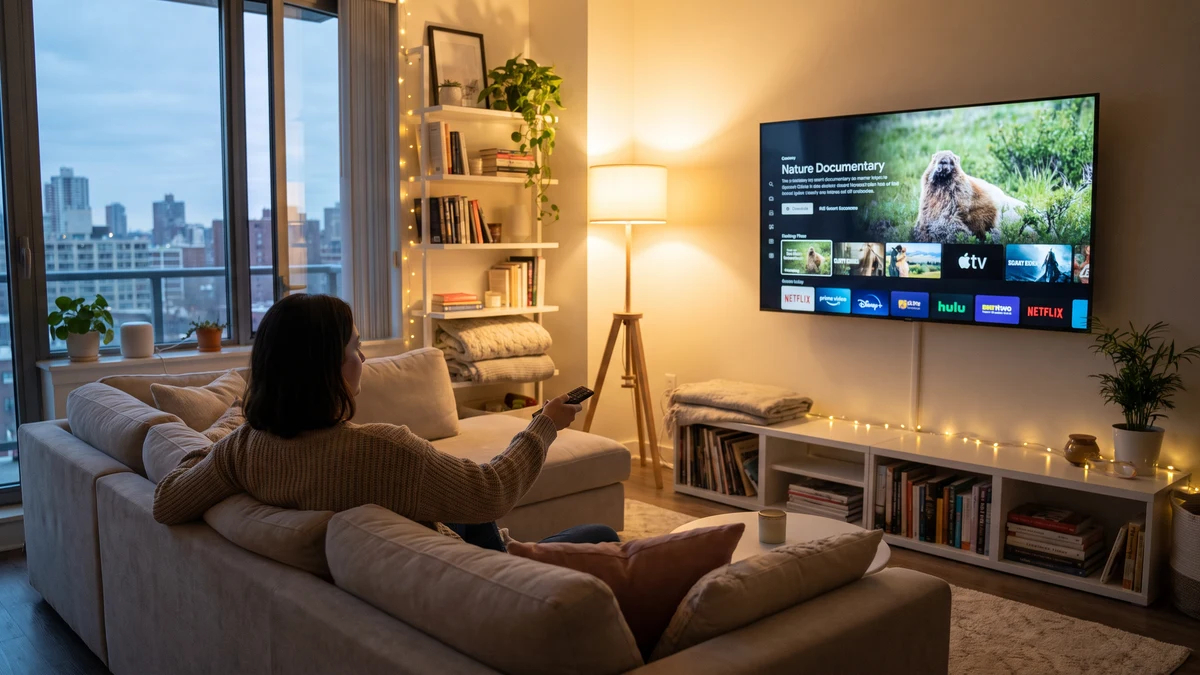
The short answer is yes — you can use a VPN on a smart TV, but how you do it depends on which TV you have. Some smart TVs support VPN apps directly. Others require a workaround through your router or a travel router. Understanding your options takes about five minutes and can meaningfully improve how much data your TV collects about you.
This guide covers what smart TVs are actually doing on your network, which setup method works for your TV, and why the privacy case for a smart TV VPN is stronger than most people realize.
What Your Smart TV Is Doing Without a VPN
Smart TVs from every major manufacturer — Samsung, LG, Sony, Vizio, TCL — collect data about what you watch, how long you watch it, when you turn the TV on and off, and which apps you use. This data collection practice is called Automatic Content Recognition (ACR), and it's enabled by default on virtually every smart TV sold in the past several years.
ACR works by capturing samples of what's displayed on your screen — including content from cable boxes, game consoles, and streaming sticks connected via HDMI — and matching those samples against a database to identify what you're watching. The data is then shared with the TV manufacturer's advertising partners.
In 2017, Vizio paid $2.2 million to settle FTC charges that it collected viewing data on 11 million smart TVs without adequate disclosure or consent. That case brought ACR practices into public view, but the data collection has continued across the industry — mostly buried in terms of service that users accept during setup.
Beyond ACR, smart TVs connect to streaming services, app stores, and update servers over your home network. Any device on that network with a compromised connection — or any device on an open network if you take your TV to a vacation rental or hotel — transmits that connection data in the clear unless encrypted.
Which VPN Setup Method Works for Your TV
There are three ways to put a VPN between your smart TV and the internet. Which one you use depends on your TV's operating system.
Option 1: Native VPN App (Android TV and Google TV)
If your smart TV runs Android TV or Google TV — this includes Sony Bravia models, most TCL Google TV models, Hisense Google TV, Nvidia Shield, and others — you can install a VPN app directly from the Google Play Store on the TV.
This is the cleanest solution. The VPN app runs on the TV itself, encrypts all TV traffic, and can be toggled on and off from the TV's app interface. No router configuration required.
CyberFence is available on Android, and the Android TV app works on Android TV/Google TV devices through sideloading or direct APK installation if not available directly in the TV's Play Store region.
Option 2: Router-Level VPN (All TVs)
This is the universal solution that works with Samsung Tizen OS, LG webOS, Vizio SmartCast, Roku OS, Amazon Fire TV, and every other smart TV platform — including ones where you cannot install apps.
You configure the VPN on your router rather than on the TV. All devices connected to that router — including your smart TV — then have their traffic routed through the VPN automatically. The TV doesn't need any software installed; it just uses the network.
Router-level VPN setup requires a router that supports VPN client configuration. Many modern routers (Asus, Netgear Nighthawk, GL.iNet, and others) support this natively in their firmware. You configure the VPN connection in the router's admin interface, and all connected devices inherit that protection.
The limitation is that a VPN on the router protects all devices simultaneously — you can't selectively apply it to just the TV without more advanced configuration (like VLANs or split routing). For most home users, whole-network VPN is actually preferable.
Option 3: Travel Router (Hotel, Vacation Rentals, Any Away-From-Home Setup)
If you travel with a smart TV — or want to protect a TV that's connected to a hotel or short-term rental network — a travel router is the most practical solution. Devices like the GL.iNet Slate or Beryl connect to the hotel Wi-Fi as a client and create a new secured Wi-Fi network, with VPN running at the travel router level. Your TV connects to the travel router's network and gets VPN protection.
This is also useful at vacation homes where you don't control the main router and can't install software on the TV.
Protect Every Device in Your Home
CyberFence covers all your devices under one plan — phones, laptops, tablets, and via router or Android TV, your smart TV too. AES-256-GCM encryption, Web Shield DNS filtering, zero logs.
See Plans →Samsung Smart TV (Tizen OS)
Samsung uses its own Tizen operating system, which does not support VPN apps from a third-party app store. The Samsung Smart Hub does not have a VPN category, and you cannot sideload Android APKs on Tizen.
Your options for Samsung TVs are router-level VPN or travel router. Both work well. Configure the VPN on your home router and your Samsung TV is protected alongside every other device on the network.
LG Smart TV (webOS)
LG's webOS platform similarly does not support native VPN apps. The LG Content Store doesn't carry VPN applications.
Same solution as Samsung: router-level VPN. All LG webOS TV traffic routes through the VPN when configured at the router.
Roku and Amazon Fire TV
Roku OS does not support VPN apps at all — Roku has explicitly blocked VPN app submissions from its channel store. Router-level is your only option for Roku devices (sticks, boxes, Roku-based TVs).
Amazon Fire TV devices do support some VPN apps through the Amazon Appstore, and Android APKs can be sideloaded via Developer Options on Fire TV sticks. This gives Fire TV users more flexibility than Roku or Tizen/webOS owners.
Apple TV
Apple TV (tvOS) added native VPN app support in tvOS 17. If your Apple TV is running tvOS 17 or later, VPN apps that support tvOS can be installed directly from the App Store on the device. This is a relatively recent addition — prior to tvOS 17, the router-level approach was the only option for Apple TV.
CyberFence's iOS app shares the same underlying codebase with tvOS compatibility — check the App Store for current tvOS availability.
The Privacy Case for Smart TV VPN
Smart TV data collection has real consequences for your household's privacy profile. ACR data combined with IP address information creates a detailed viewing history tied to your home — who watches what, when, and for how long. This data is used for targeted advertising across all devices associated with your IP address, not just your TV.
Disabling ACR in your TV's settings (look for "SamAdvisor" on Samsung, "Live Plus" on LG, "Smart Interactivity" on Vizio, "Samba Interactive TV" on others) reduces but doesn't eliminate the data collection. Your streaming app activity, search history, and network connection data still flow to the TV manufacturer and streaming services regardless of ACR settings.
A VPN addresses the network visibility layer — your ISP can no longer correlate your home IP address with streaming activity, and your smart TV's connections to update servers and analytics endpoints are encrypted in transit. Combined with disabling ACR, it represents a meaningful reduction in smart TV data exposure.
Does VPN Affect Streaming Quality?
A well-engineered VPN has minimal impact on streaming quality. The key factors are server proximity and protocol selection.
- Server proximity — connect to a VPN server geographically close to you. Routing traffic through a server in the same country adds minimal latency. Routing through a distant server (different continent) adds more.
- Protocol — WireGuard is the fastest modern VPN protocol, well-suited for high-bandwidth streaming applications. CyberFence uses WireGuard as its default protocol.
- Bandwidth — the VPN server itself needs adequate bandwidth. CyberFence maintains US-operated infrastructure with sufficient capacity for streaming workloads.
4K streaming typically requires 25 Mbps. Most home internet connections have well above that available. The VPN overhead (typically adding 10-20ms latency on a nearby server) doesn't meaningfully affect streaming buffering or quality at normal connection speeds.
Quick Setup Summary by TV Type
- Android TV / Google TV — Install VPN app directly on the TV (easiest)
- Samsung Tizen — Configure VPN on your router or use a travel router
- LG webOS — Configure VPN on your router or use a travel router
- Roku — Configure VPN on your router (only option)
- Amazon Fire TV — Install VPN app from Appstore or sideload APK
- Apple TV (tvOS 17+) — Install VPN app from App Store
- Apple TV (tvOS 16 and earlier) — Configure VPN on your router
The router-level approach is the most universal — once configured, it protects your smart TV, streaming sticks, smart speakers, gaming consoles, and every other connected device in your home without needing separate apps on each one.
One Plan, Every Device in Your Home
CyberFence is a US-operated VPN that helps keep your browsing private from the network while connected. Web Shield helps block known harmful websites. Choose the protection that fits your devices and needs. Personal VPN plans start at $7.99/month with monthly billing. Cancel renewal anytime. Breach Monitor is a separate paid feature or included with Complete.
View Plans →Want to go deeper? Read the CyberFence competitor comparison hub , CyberFence vs. ExpressVPN side-by-side , or CyberFence plans and pricing .