Also on CyberFence: the free CyberFence security tools · run a free DNS leak test .
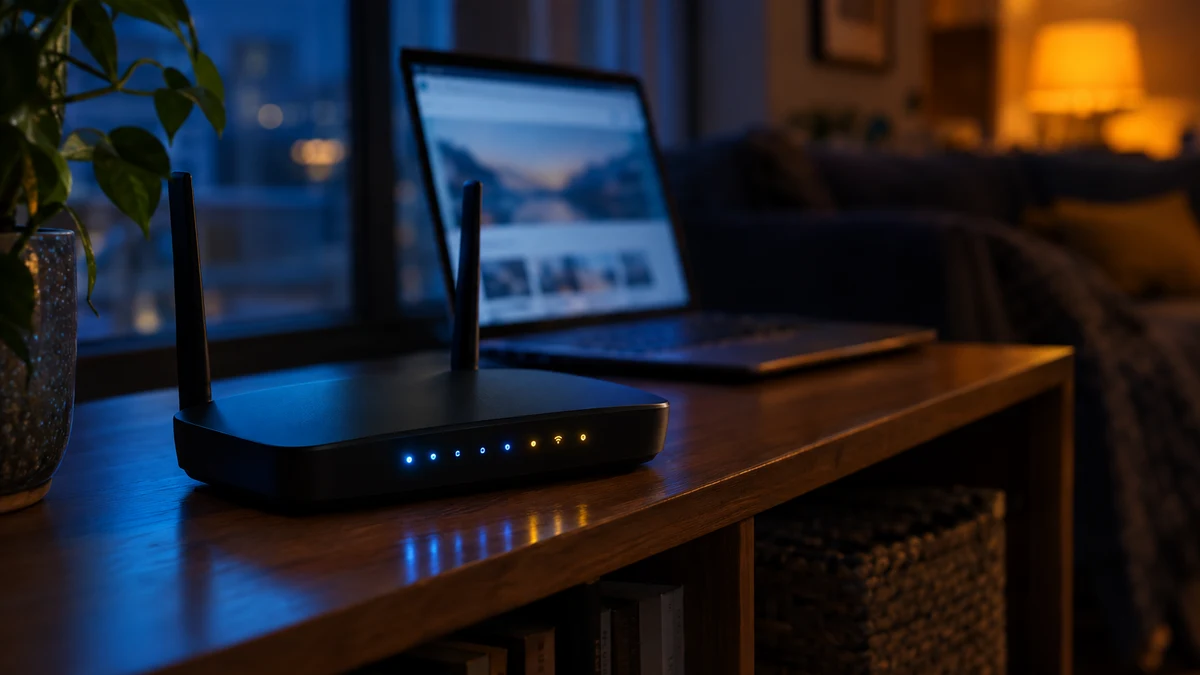
DNS hijacking is an attack that changes where your device goes when you type a web address. You enter the right name, the page looks right, but your request was quietly answered by a server the attacker controls. In most real cases, the weak point is not your phone or laptop. It is the router sitting on your shelf.
This is not a theoretical risk. In April 2026, the U.S. Department of Justice and the FBI announced a court-authorized operation to clean up home and small-office routers that a Russian military intelligence unit had taken over to hijack DNS. The FBI said routers belonging to Americans in more than 23 states were involved. Microsoft Threat Intelligence counted more than 200 organizations and 5,000 consumer devices affected by the same campaign.
Here is how DNS hijacking works, how to tell if it is happening to you, and where a VPN helps and where it does not.
What DNS Does
DNS, the Domain Name System, is the internet's address book. Computers connect using numeric IP addresses, but people use names like yourbank.com. Every time you open a site or an app checks for updates, your device asks a DNS resolver, "What is the address for this name?" The resolver answers, and your device connects to that address.
Most homes never choose a resolver. The router hands one out automatically to every phone, laptop, TV and smart speaker that joins the Wi-Fi, usually your internet provider's. Whoever controls that setting controls the answers every device on the network receives.
How DNS Hijacking Works
DNS hijacking means tampering with those answers. Security teams usually describe four types:
- Router hijacking. The attacker logs into or exploits your router and changes its DNS setting to a server they run. Every device on your network is affected at once. This is the most common type for home users.
- Local (device) hijacking. Malware on your computer or phone changes its own DNS settings.
- On-path hijacking. On a shared network such as public Wi-Fi, an attacker intercepts DNS requests, which are usually unencrypted, and sends back fake answers.
- Registrar or provider hijacking. The attacker takes over a website's own DNS records at its domain registrar or DNS host, so everyone in the world is pointed to the wrong place.
In the 2026 router campaign, investigators found the attackers mostly passed requests through to the real sites so nothing seemed wrong, while collecting a record of where people went. For selected targets, they returned fake addresses for services like Microsoft Outlook on the web. According to Microsoft, those fake servers showed an invalid security certificate. People who clicked past the browser warning could have their email and other data read. The DOJ says the group also collected unencrypted passwords, sign-in tokens and emails from devices on the same networks.
Criminal groups use the same trick for money. Security researchers at Infoblox have reported a separate campaign that took over outdated home routers in dozens of countries and pushed users through redirect chains toward scam and malicious sites.
Keep your DNS out of your router's hands. With CyberFence connected, your device's DNS lookups travel inside an AES-256-GCM encrypted tunnel instead of using the router's DNS setting, and Web Shield blocks known malicious and phishing domains. Plans start at $7.99/month.
See CyberFence Plans →Warning Signs of DNS Hijacking
DNS hijacking is designed to be quiet, but these signs are worth checking:
- Certificate warnings on familiar sites. A "Your connection is not private" message on your bank, email or a major site is a red flag. Do not click past it.
- Unexpected redirects. You type a well-known address and land on a different page, a search page full of ads, or a "prize" pop-up.
- Sign-in pages that look slightly off. Odd spelling, missing logos or a strange web address in the bar.
- Every device acting strangely at once. If phones, laptops and the TV all show odd behavior on your home Wi-Fi but work fine on mobile data, the router is the likely cause.
- Router settings you did not make. Unknown DNS server addresses, remote management turned on, or a changed admin password.
You can also run our free DNS leak test. If it shows resolver servers you do not recognize or did not expect, investigate further.
Can a VPN Protect You From DNS Hijacking?
For the most common types, yes, a VPN is one of the best defenses. But the honest answer depends on where the hijack happens.
Router hijacking: strong protection
When a well-built VPN is connected, your device sends DNS lookups through the encrypted tunnel to the VPN provider's own resolver. It does not ask the router who to talk to. So even if someone has changed your router's DNS setting, your protected devices never use it. This is exactly the attack described by the FBI and Microsoft, and it is why DNS leak protection matters. See what a DNS leak is.
Two caveats: the protection covers only devices running the VPN, so your smart TV or game console may still use the hijacked router. And it only works while the VPN is connected, which is why a kill switch matters.
Public Wi-Fi interception: strong protection
On a coffee shop or hotel network, an attacker cannot read or rewrite DNS requests that are inside an encrypted tunnel. See whether a VPN protects from man-in-the-middle attacks and evil twin Wi-Fi attacks.
Malware on your device: partial protection
If malware already controls your computer, it may change settings, interfere with apps, or steal data directly. A VPN cannot clean an infected device. Keep your system updated and use your operating system's built-in security tools.
Registrar or provider hijacking: no protection
If attackers take over a website's real DNS records, the wrong answer comes from the authoritative source itself. No VPN can fix that. Your best protections are paying attention to certificate warnings, using two-step sign-in, and blocking known malicious domains. We covered a real example in our post on a country domain hijack using fake Google certificates.
How Web Shield Adds a Second Layer
Encryption protects the path your DNS request takes. It does not judge where the request is going. CyberFence's Web Shield adds that layer: it checks domains against lists of known malware and phishing sites and blocks them before the page loads. If a hijack or a bad link sends you toward a known scam domain, Web Shield can stop it. It relies on reported threats, so a brand-new site may not be listed yet. Learn more in how DNS filtering works.
How to Check and Secure Your Router
The DOJ and FBI recommend these steps for every home and small-office router:
- Replace routers that no longer get updates. Check the manufacturer's site for "end of life" or "end of support" notices.
- Install the latest firmware. Many routers can update automatically; turn that on.
- Check the DNS servers in your router settings. Log into the admin page (often printed on a label on the router) and look for DNS or DHCP settings. If you see addresses you do not recognize, reset them to automatic or to your internet provider's defaults.
- Turn off remote management from the internet unless you truly need it.
- Change the default admin username and password to something long and unique.
If you find something wrong, a factory reset followed by a firmware update and a new admin password is often the cleanest fix. Then change passwords for important accounts you used on that network, starting with email.
The Bottom Line
DNS hijacking works because most people never look at who answers their DNS requests. Attackers who control your router can see where you go and, for chosen targets, send you to convincing fakes. Keep your router updated, never click past certificate warnings, and use a VPN with built-in DNS protection so your devices stop trusting whatever the local network tells them.
Stop trusting the network you are on. CyberFence keeps DNS lookups inside an AES-256-GCM encrypted tunnel, blocks known malicious domains with Web Shield, and cuts traffic with a kill switch if the connection drops. Monthly $7.99, or $88.21 a year ($7.35/month).
Get CyberFence →Want to go deeper? Read our free privacy and security tools , the CyberFence DNS leak test , or the CyberFence WebRTC leak checker .