Mac App
CyberFence for Mac.
Built for macOS. Optimized for Apple Silicon.
Built native. Runs like macOS. AES-256 encrypted VPN, Web Shield DNS filtering, split tunneling, menu bar control, network intelligence, and Breach Monitor — all built with SwiftUI and Apple’s own frameworks for macOS Sonoma through Sequoia.

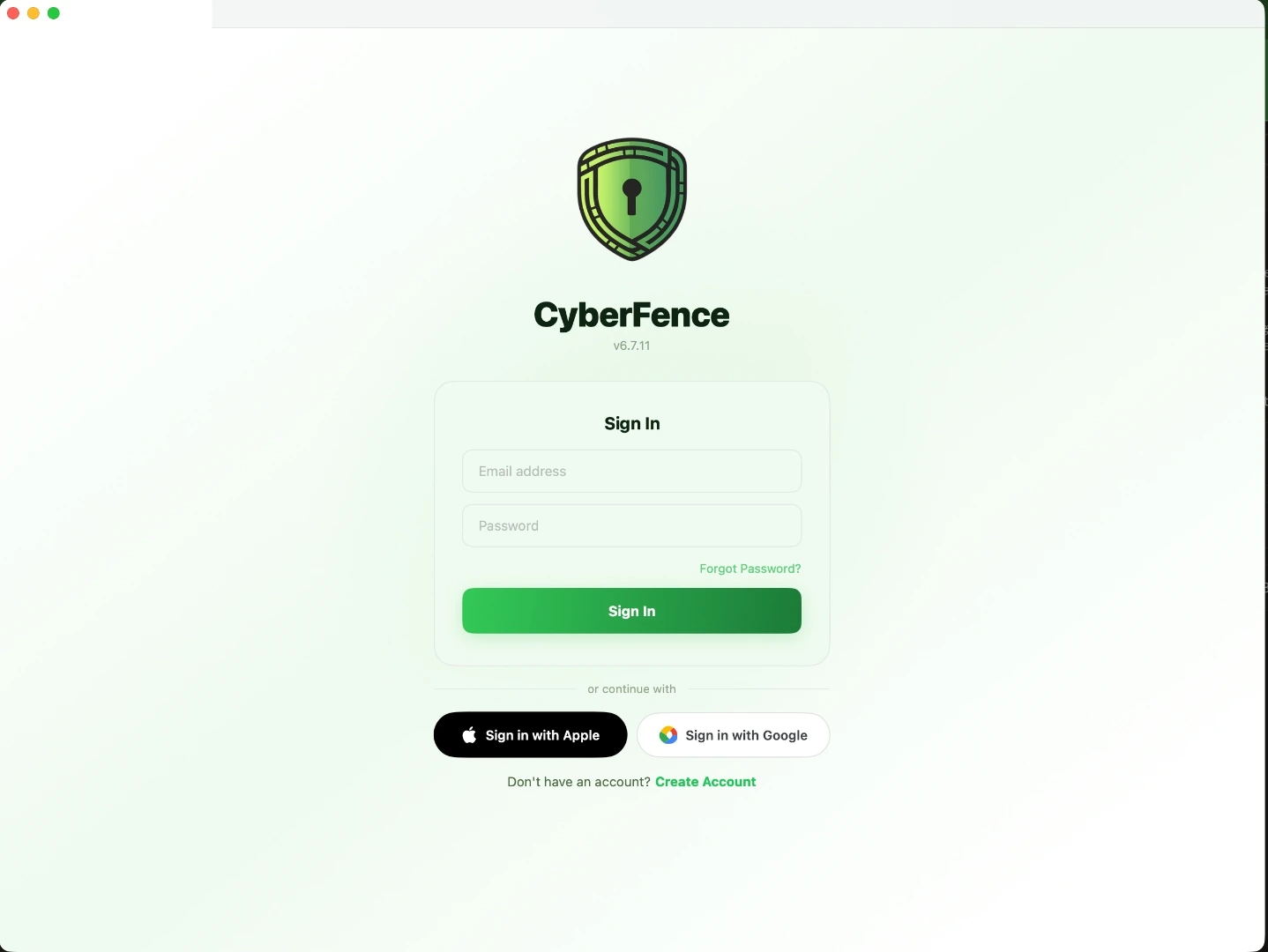
Built for macOS
Built Native. Runs Like macOS.
CyberFence is written in SwiftUI and built on Apple's own frameworks throughout — designed specifically for macOS Sonoma through Sequoia. It looks, feels, and performs exactly as a Mac app should.
Apple Silicon & Intel
Universal binary — runs natively on every M-series chip (M1 through M4) and all Intel Macs. No Rosetta translation. Engineered to run lean on M-series: under 1% CPU at idle so it never touches your battery life.
Menu Bar Control
The CyberFence status icon lives in your menu bar at all times. See your live connection state, toggle the VPN on or off, and check your current network — without ever opening the main window.
Apple Network Extension
The VPN tunnel is powered by Apple's built-in VPN technology — the same one used by every trusted VPN on Mac. It runs in an isolated background process, so your encrypted tunnel stays active even if the app is in the background.
Smart Wi-Fi Detection
CyberFence reads your Wi-Fi network name and security type directly from macOS. It detects open, unsecured networks the moment you connect and switches on protection automatically — before anything leaves your Mac.
Unlock with Touch ID
CyberFence supports native Touch ID authentication — just rest your finger on the sensor to unlock the app instantly. No password typing, no friction. It's the fast, secure way Mac users expect.
- Native Local Authentication framework — the same one Apple uses for unlocking your Mac
- Works on any Mac with a Touch ID sensor or a Magic Keyboard with Touch ID
- Your fingerprint never leaves the Secure Enclave — CyberFence never sees it
- Falls back to your macOS password if Touch ID is unavailable
Enable in Settings → one tap, you're in.
Native macOS Widgets. Security at a Glance.
Three native macOS widgets put your security status on your desktop at a glance — no app launch needed. See your VPN state, security score, and breach alerts directly from the macOS widget gallery.
- VPN Status widget — see connection state and toggle VPN right from your desktop
- Security Overview widget — your live security score and active protection layers at a glance
- Breach Alert widget — instant notification when new breaches are detected on your account
- Available in small and medium sizes — fits anywhere in your widget layout
- Powered by Apple's WidgetKit — updates live, no battery impact
Add from the macOS Widget Gallery — search "CyberFence".
Control CyberFence with Siri & Spotlight
Ask Siri to connect, disconnect, or check your breach status — hands-free, from anywhere on your Mac. Every CyberFence action also appears live in Spotlight so you can trigger it with a single keystroke.
- "Hey Siri, connect CyberFence" — VPN connects instantly
- "Hey Siri, disconnect CyberFence" — one command to disconnect
- "Hey Siri, check my breach status" — your security summary, read aloud
- All shortcuts appear as live results in Spotlight — Space and type "CyberFence"
- Built on Apple's App Intents — the same framework powering Siri across all Apple devices
Works with Siri, Spotlight, and the Shortcuts app.
Apple Intelligence
Built for the Age of On-Device AI.
CyberFence is the first VPN built from the ground up for Apple Intelligence on macOS Sequoia. Every feature below runs entirely on your device — your data never leaves your Mac.
Ask Siri About Any Day of Your VPN History
CyberFence now answers natural-language questions about your past VPN sessions — powered by Apple Intelligence. Ask about any date and get a plain-English answer, no searching required.
- "Hey Siri, how long was I connected to CyberFence yesterday?"
- "Was I protected by CyberFence last Tuesday?" — filtered by calendar day
- "Show my last CyberFence session" — server, duration, and time at a glance
- Date understanding happens entirely on your device — nothing is sent online
- Date understanding works across all languages CyberFence supports
Requires macOS 15 Sequoia with Apple Intelligence enabled.
Breach Summaries Written by Apple Intelligence
CyberFence exposes your breach monitoring status as a structured Apple Intelligence intent. Siri can read it, summarize it, and deliver it in plain English — your security status in one sentence.
- "Summarise my CyberFence breach status" — Apple Intelligence writes the answer
- Includes breach count, risk level, and time since last scan
- Apple Intelligence can rewrite, shorten, or read it aloud — just like any text on your Mac
- Respects your notification preferences — only available when breach alerts are enabled
- Processed entirely on-device — your breach data never reaches Apple's servers
Requires macOS 15 Sequoia with Apple Intelligence enabled.
Apple Writing Tools in Your Connection History
Your Connection History view now generates a prose summary of your last 30 days of VPN activity. Apple Intelligence Writing Tools can rewrite, proofread, or summarize it — directly inside the app.
- Auto-generated paragraph covering session count, total hours, and servers used
- Select the text and invoke Writing Tools — rewrite, summarize, or translate
- Useful for work reports, compliance notes, or sharing your protection history
- Text is selectable and copyable — paste it anywhere on macOS
- Powered by Apple's
writingToolsBehavior(API — native, privacy-safe.limited)
Appears in Connection History — requires macOS 15 with Writing Tools enabled.
Intelligent Notification Priority
CyberFence assigns relevance scores to every notification it sends — so Apple Intelligence knows which alerts are critical and which are routine. Your most important security alerts always surface first.
- Breach alerts and untrusted network warnings score 1.0 — highest priority
- Routine VPN connect and disconnect events score 0.5 — informational
- Apple Intelligence uses these scores to prioritize your Notification Center
- Works with macOS Focus filters — urgent alerts break through Do Not Disturb
- No configuration needed — scores are set automatically based on alert severity
Requires macOS 15 Sequoia. Priority scores feed directly into Apple Intelligence notification ranking.
What's Inside
Every Feature. One App.
VPN Connection
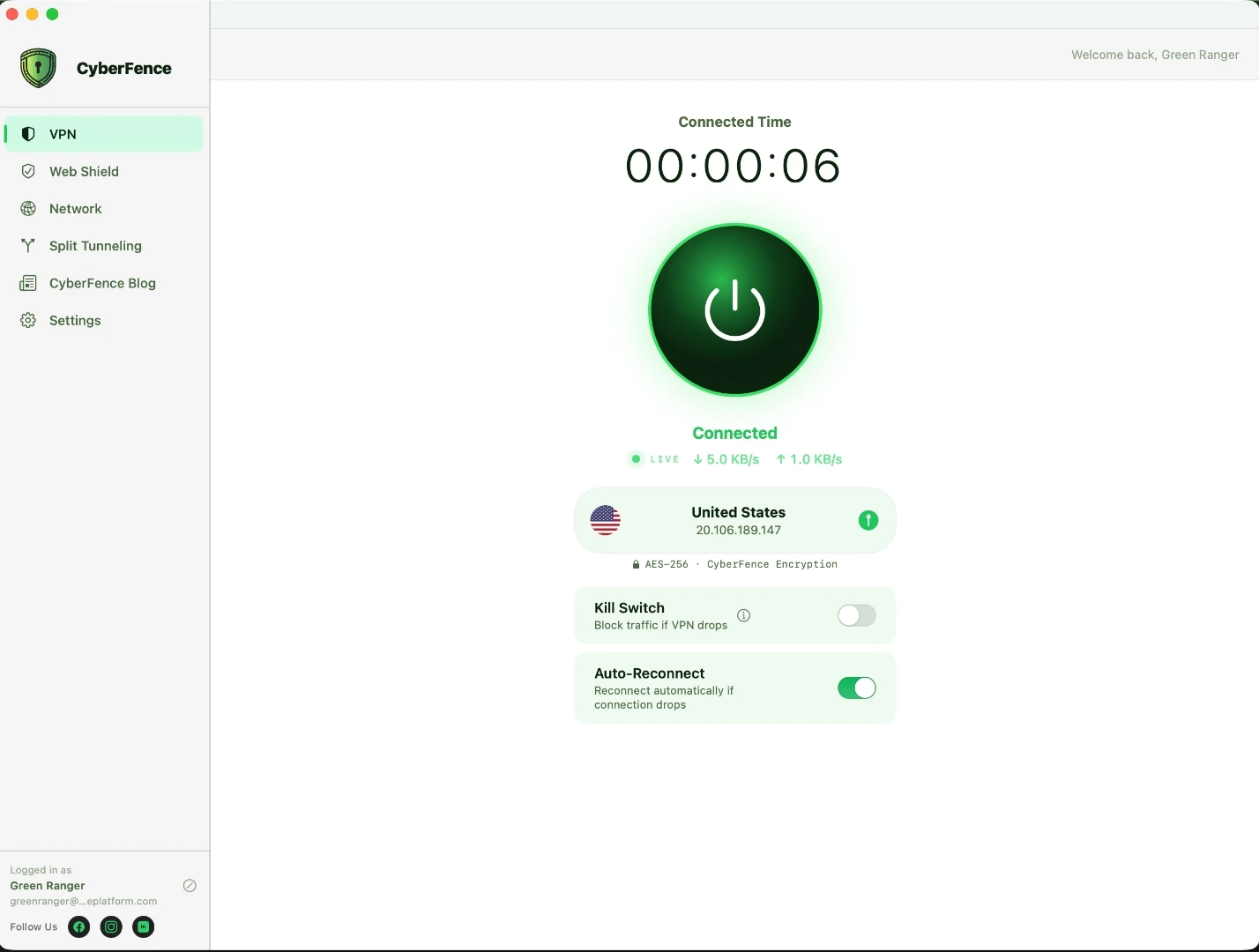
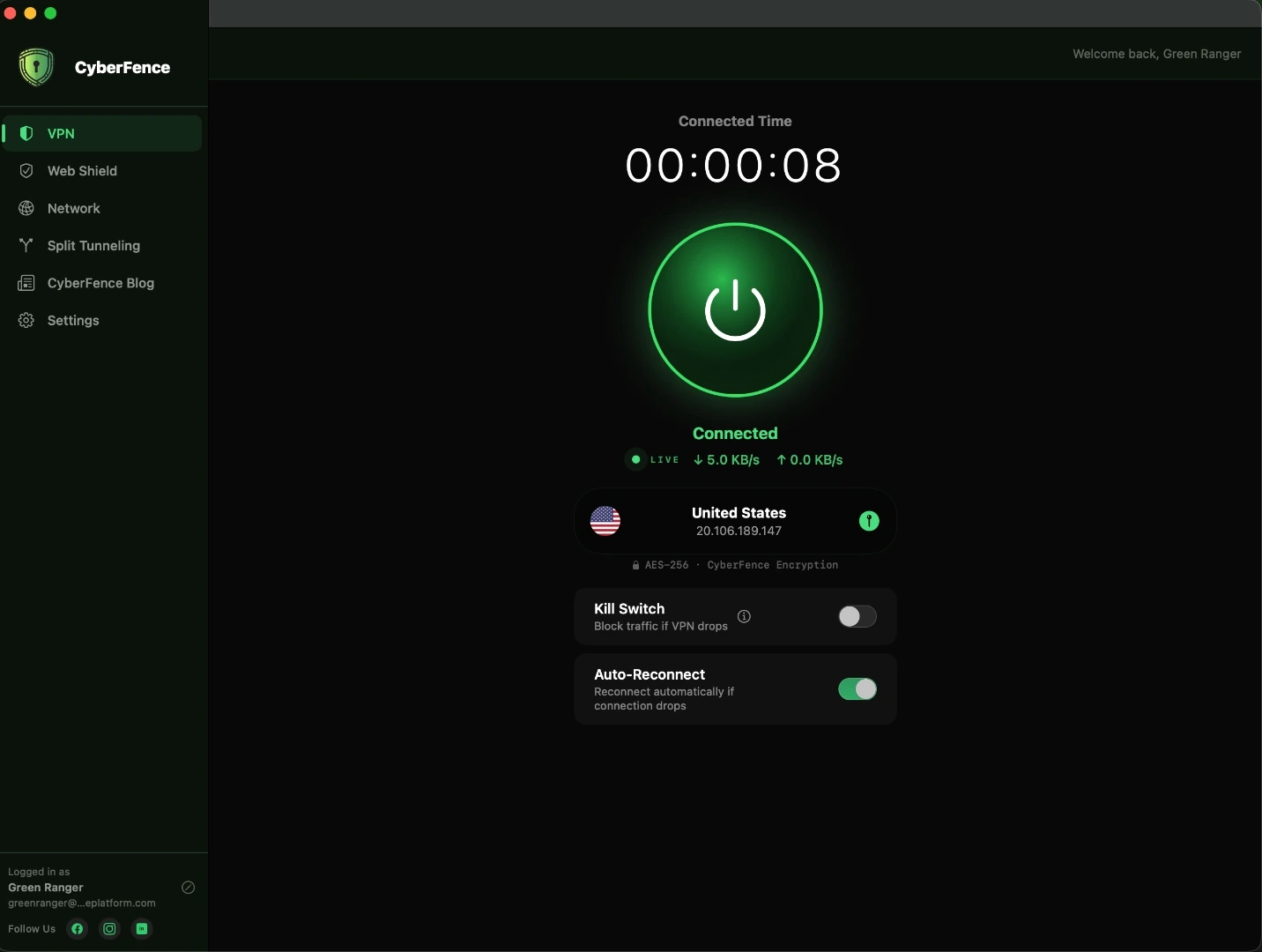
One-tap AES-256 encrypted connection to US servers. The app shows your live connection time, real-time throughput, server IP, and encryption status — so you always know exactly what is protecting your Mac's traffic.
- AES-256 · CyberFence Encryption on every connection
- Powered by Apple's built-in VPN technology — isolated from other apps, always running
- Live speed display — see upload and download speeds while connected
- Connected time counter
- US server with IP confirmation
- Kill Switch — blocks all traffic if VPN drops
- Auto-Reconnect — reconnects automatically if connection drops
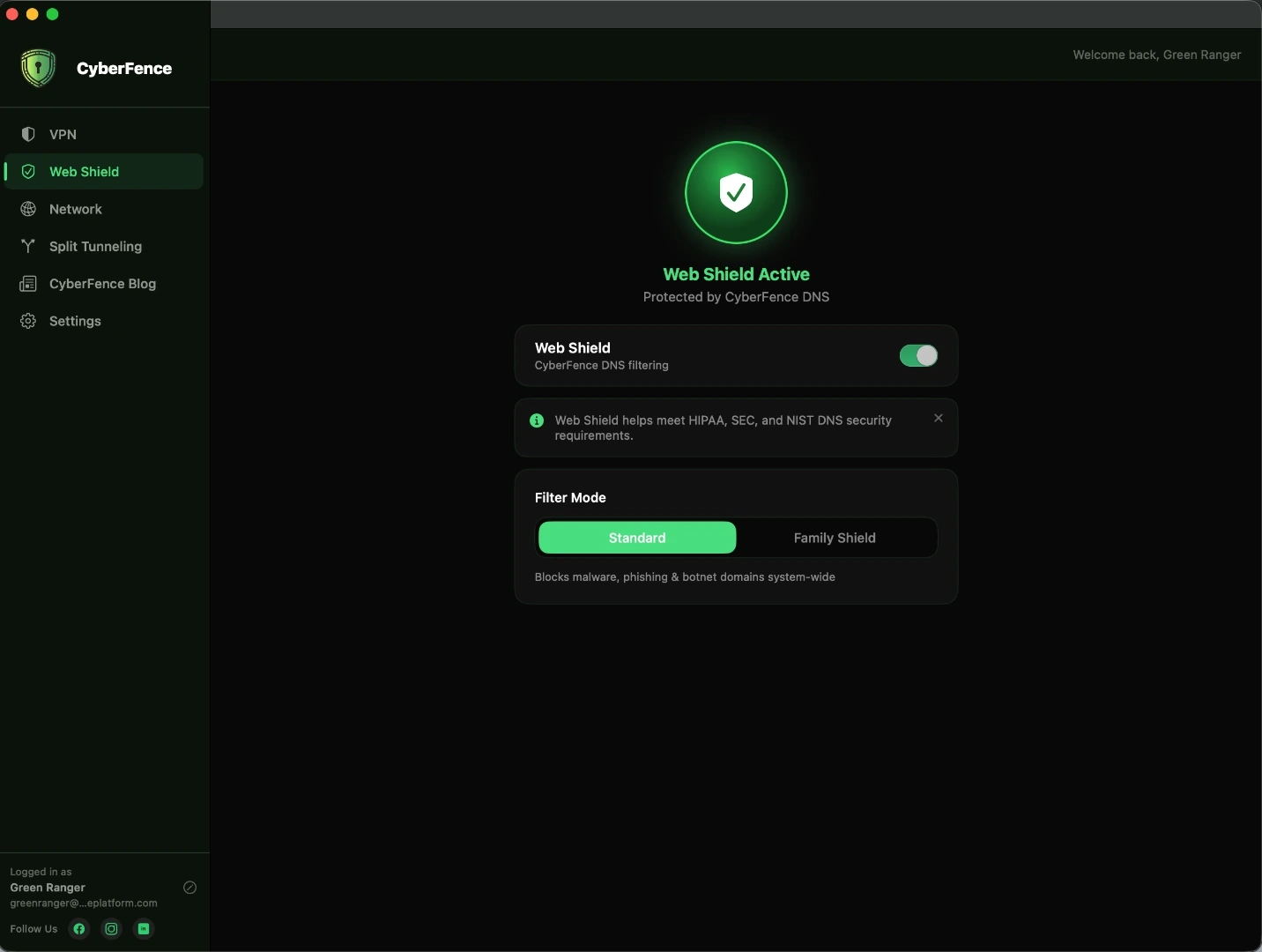
Web Shield
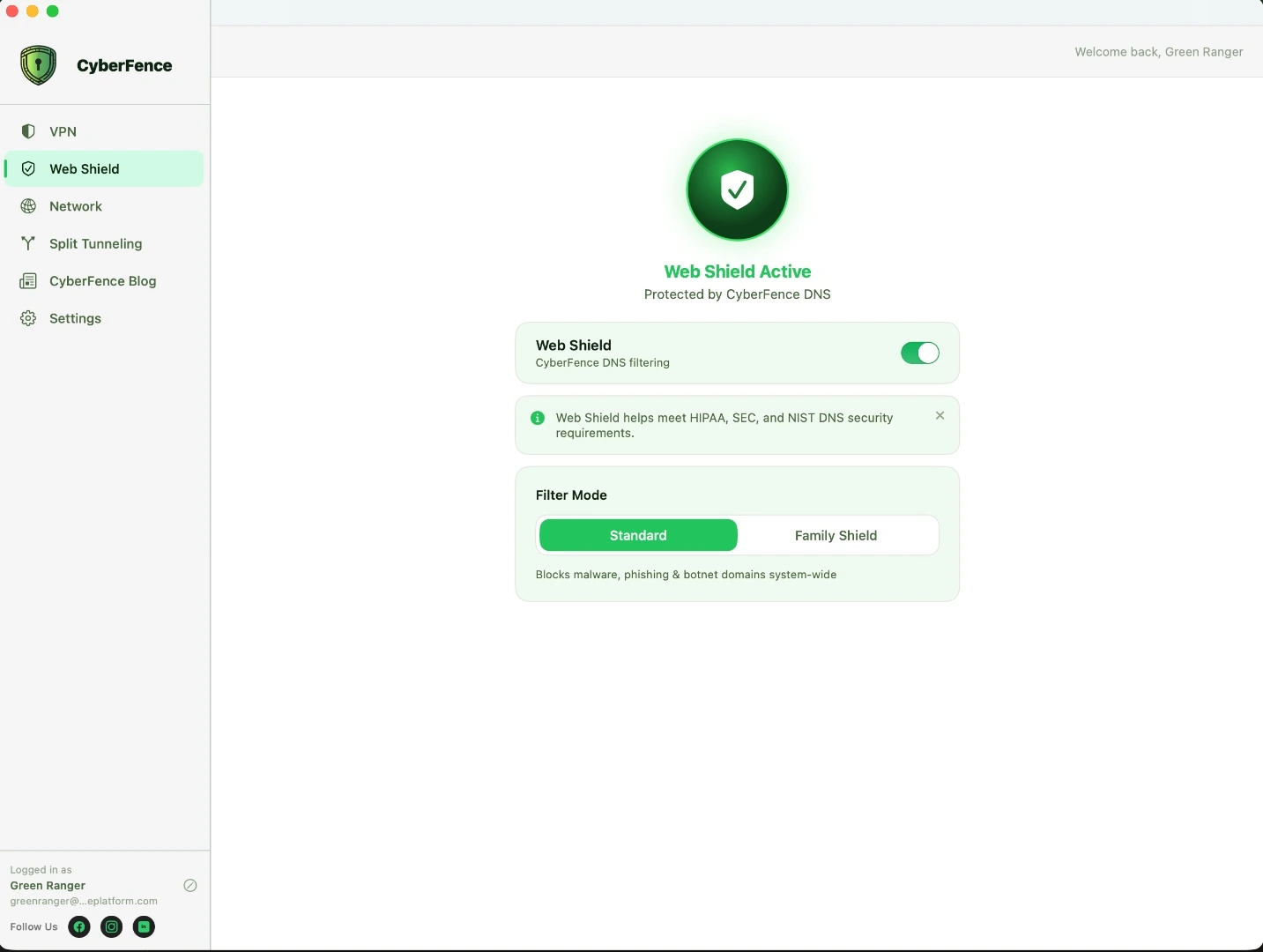
DNS-level protection that blocks malware, phishing sites, and harmful content before they ever load. Choose Standard mode for threat blocking, or Family Shield to add adult content filtering on top of malware protection.
- DNS-level blocking — stops threats before they load
- Standard mode: blocks malware and phishing sites
- Family Shield: adds adult content filtering
- Instant toggle — no app restart required
- Works independently of VPN connection state
Split Tunneling
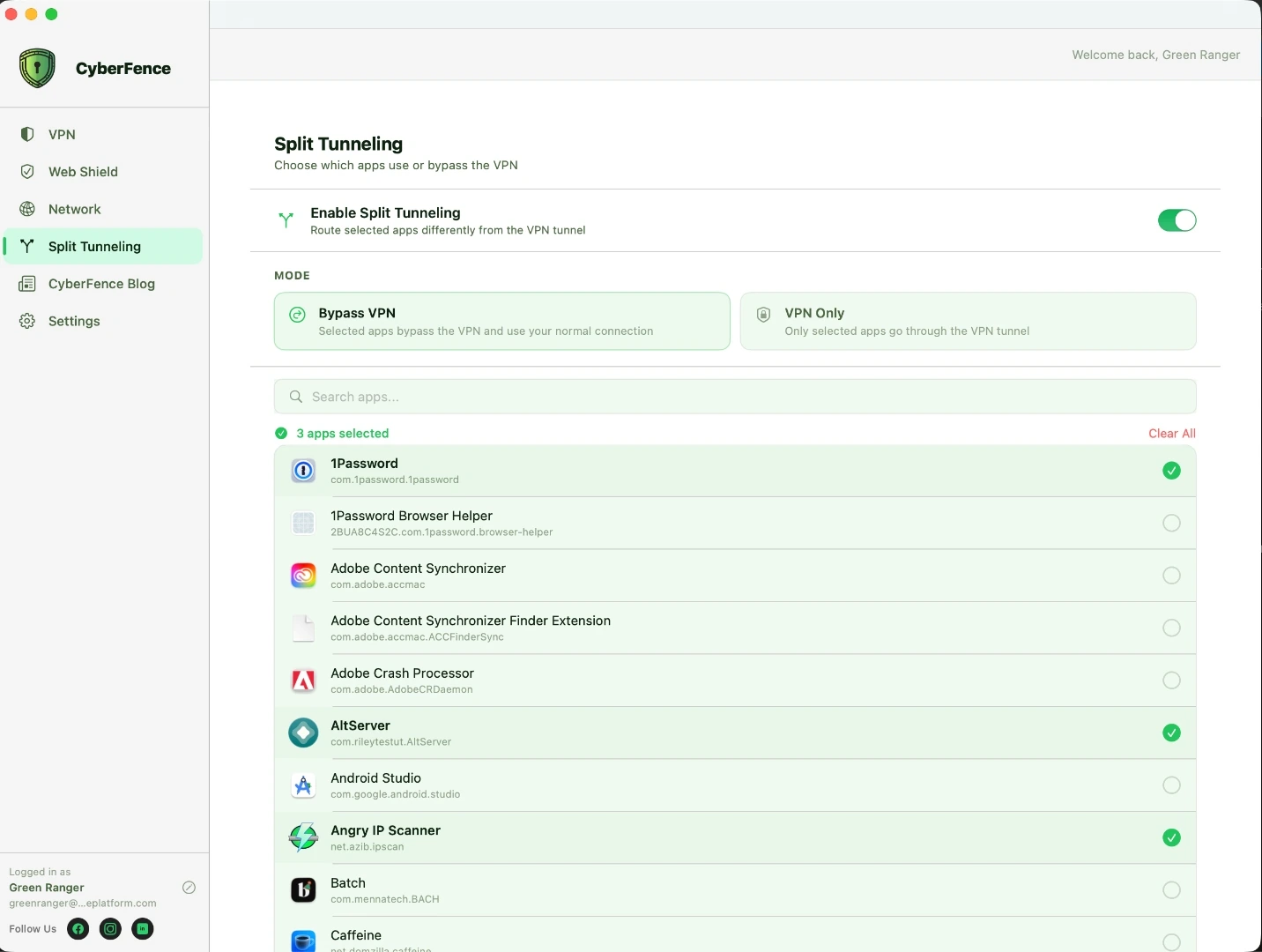
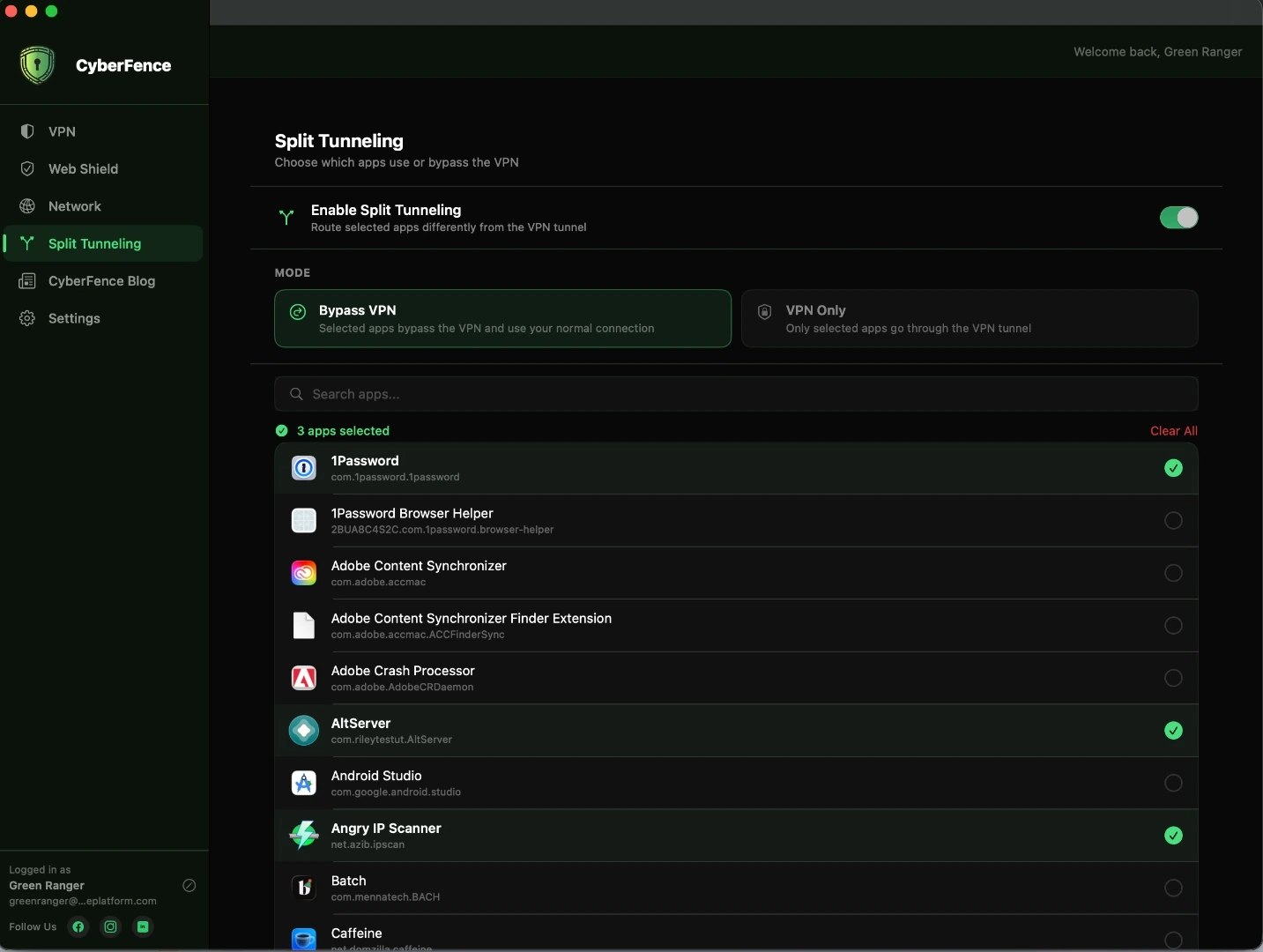
Choose exactly which apps go through the VPN tunnel and which connect directly. Route sensitive apps through the encrypted tunnel while letting streaming, gaming, or local apps bypass it — all with per-app granularity on macOS.
- Reads your installed apps directly from macOS — no manual bundle ID entry required
- Shows real app icons pulled from macOS at runtime
- Bypass mode: selected apps route outside the VPN tunnel
- VPN Only mode: only selected apps use the tunnel
- Per-app selections persist across VPN reconnections
Network Intelligence
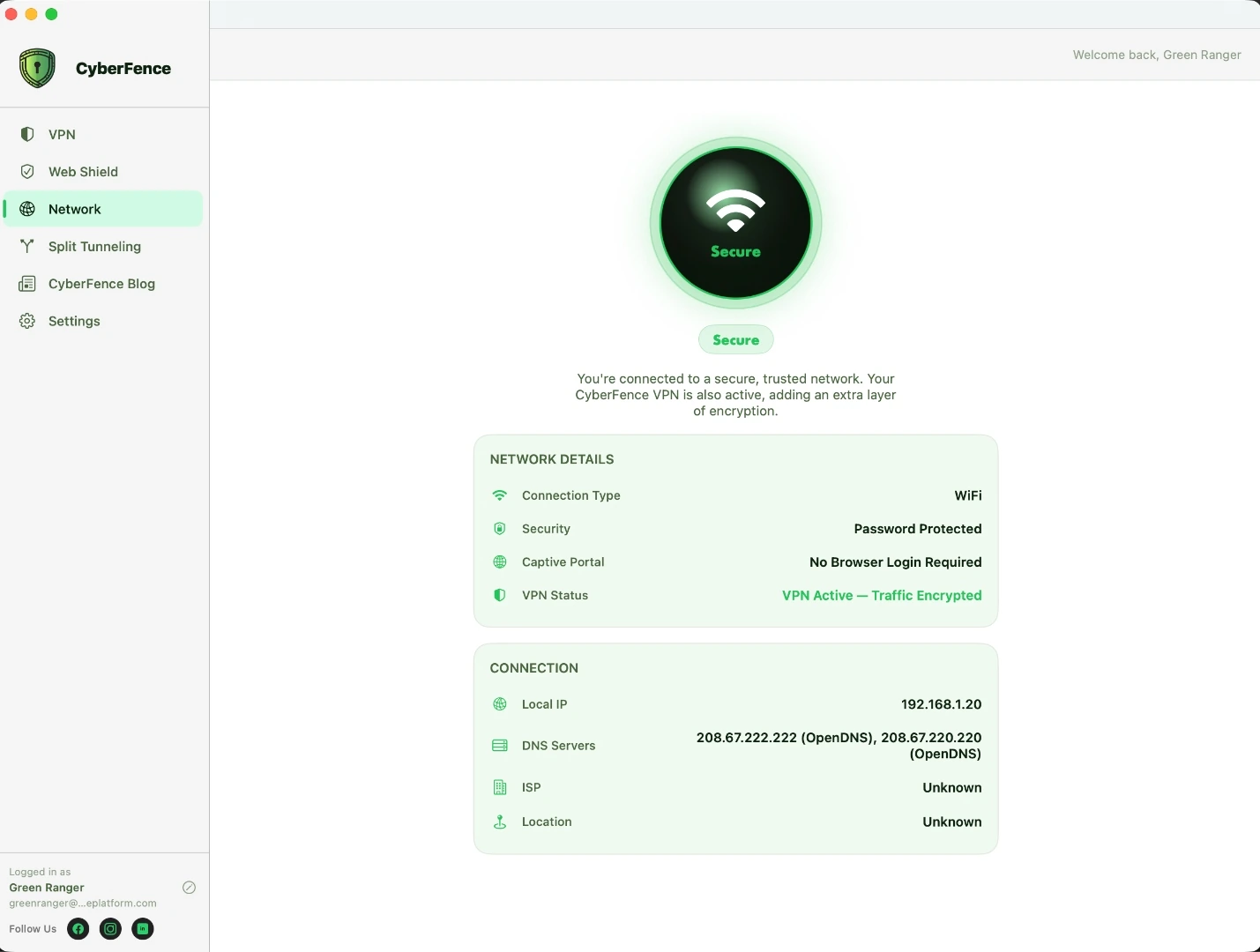
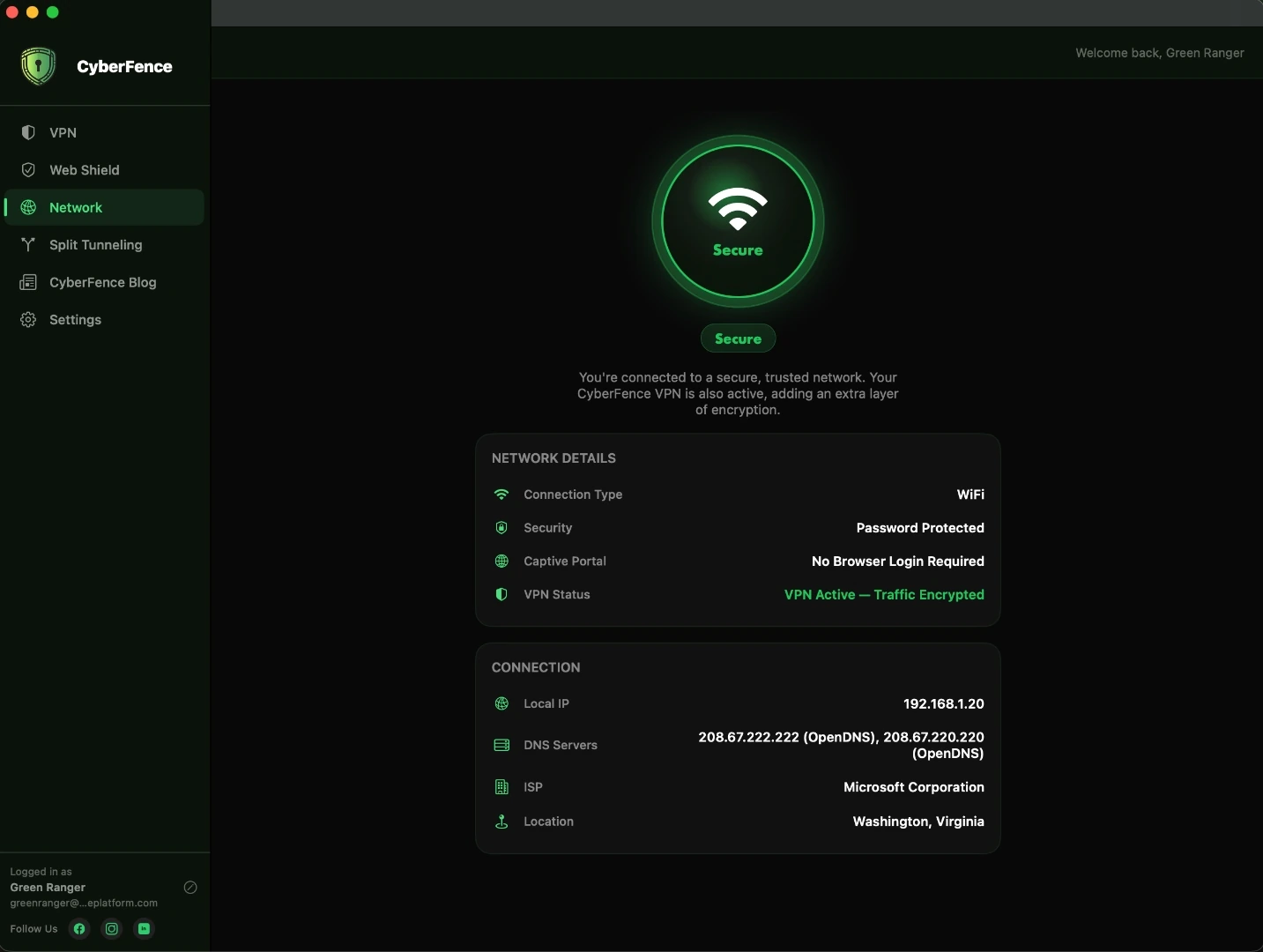
The Network view analyzes every connection in real time. It identifies your network name, security type, and whether a hotel or airport login page is required — so you always know your Mac traffic is encrypted.
- Detects whether your Wi-Fi is open or password-protected
- Reads your network name and security type directly from macOS
- Network name, type, and hotel/airport login page detection
- Real-time VPN status confirmation
- Local IP address display
- Confirms your connection is using a trusted, secure DNS server
Network Automation & Trusted Networks
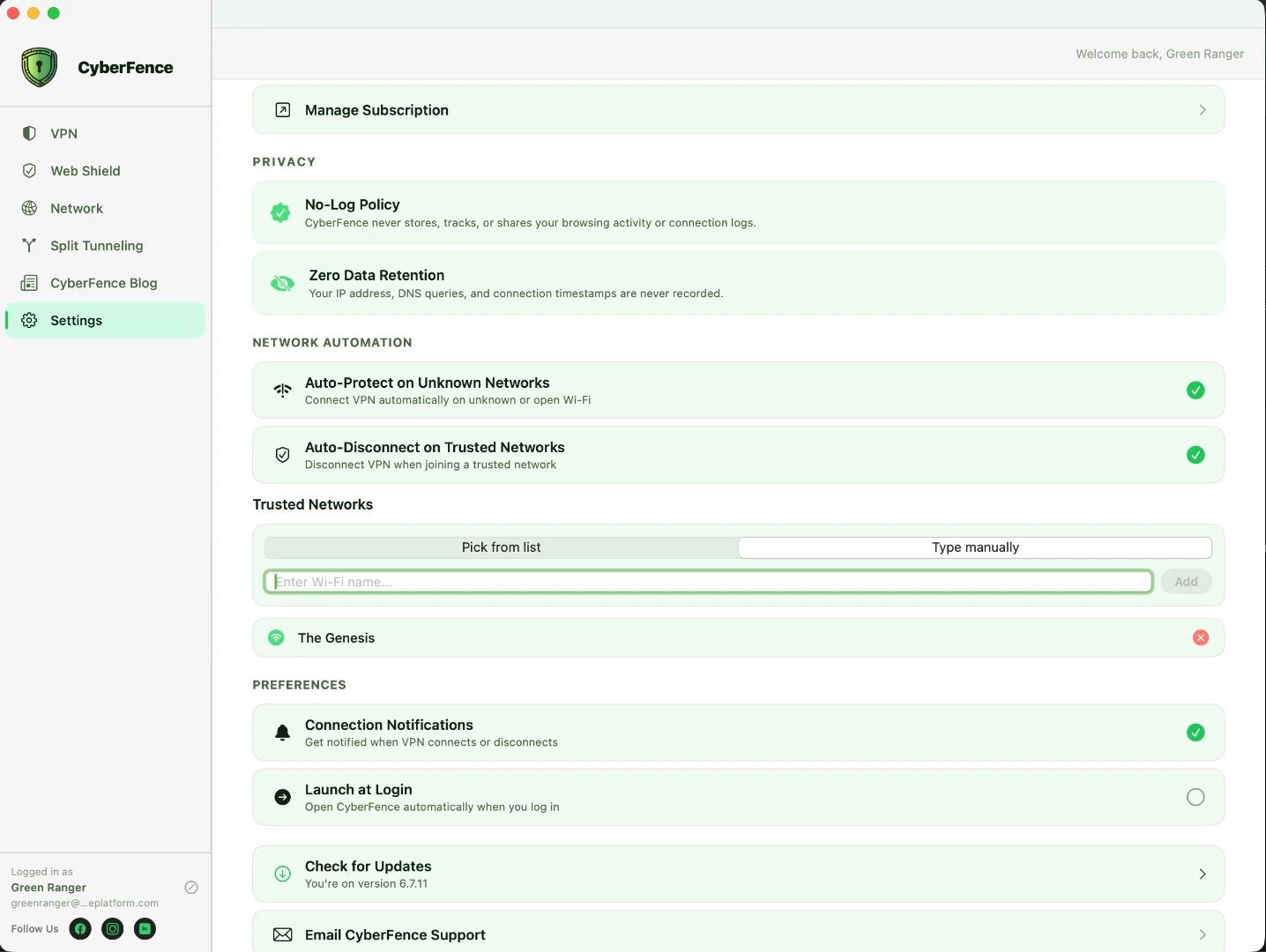
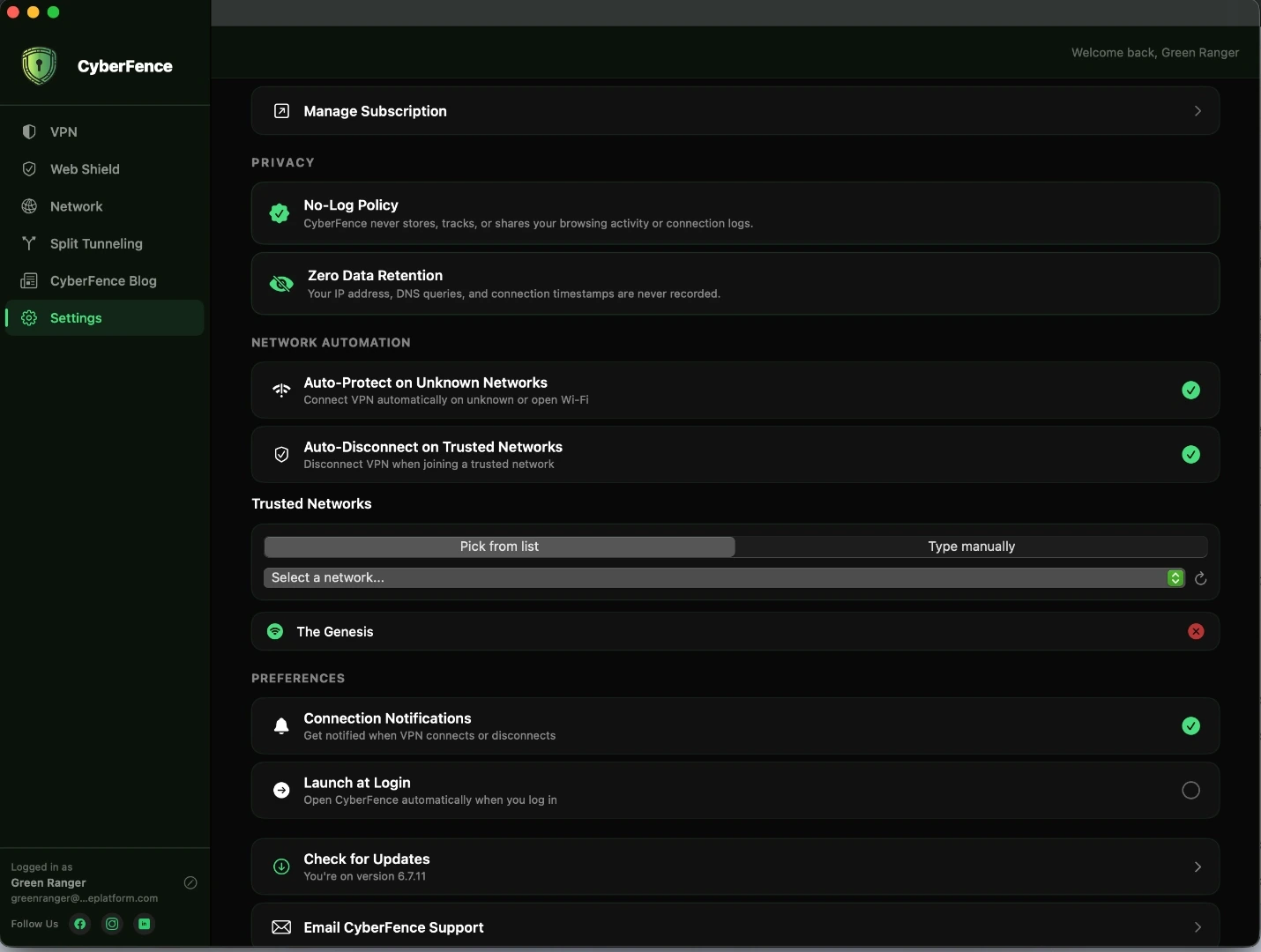
CyberFence manages your VPN connection automatically based on the network you join. Define trusted networks — your home or office Wi-Fi — and CyberFence handles the rest intelligently, without any manual intervention.
- Scans nearby Wi-Fi networks in real time to build your safe list automatically
- Detects open (passwordless) networks and triggers auto-protect automatically
- Auto-Connect on Untrusted Networks — VPN connects on any unknown Wi-Fi
- Auto-Disconnect on Trusted — VPN disconnects when you arrive home or at the office
- Add trusted networks by live scan, current network, or manual entry
- Launch at Login — starts automatically when your Mac turns on, so you’re protected from the first second
- Auto-Connect on Launch — connects to VPN every time the app opens
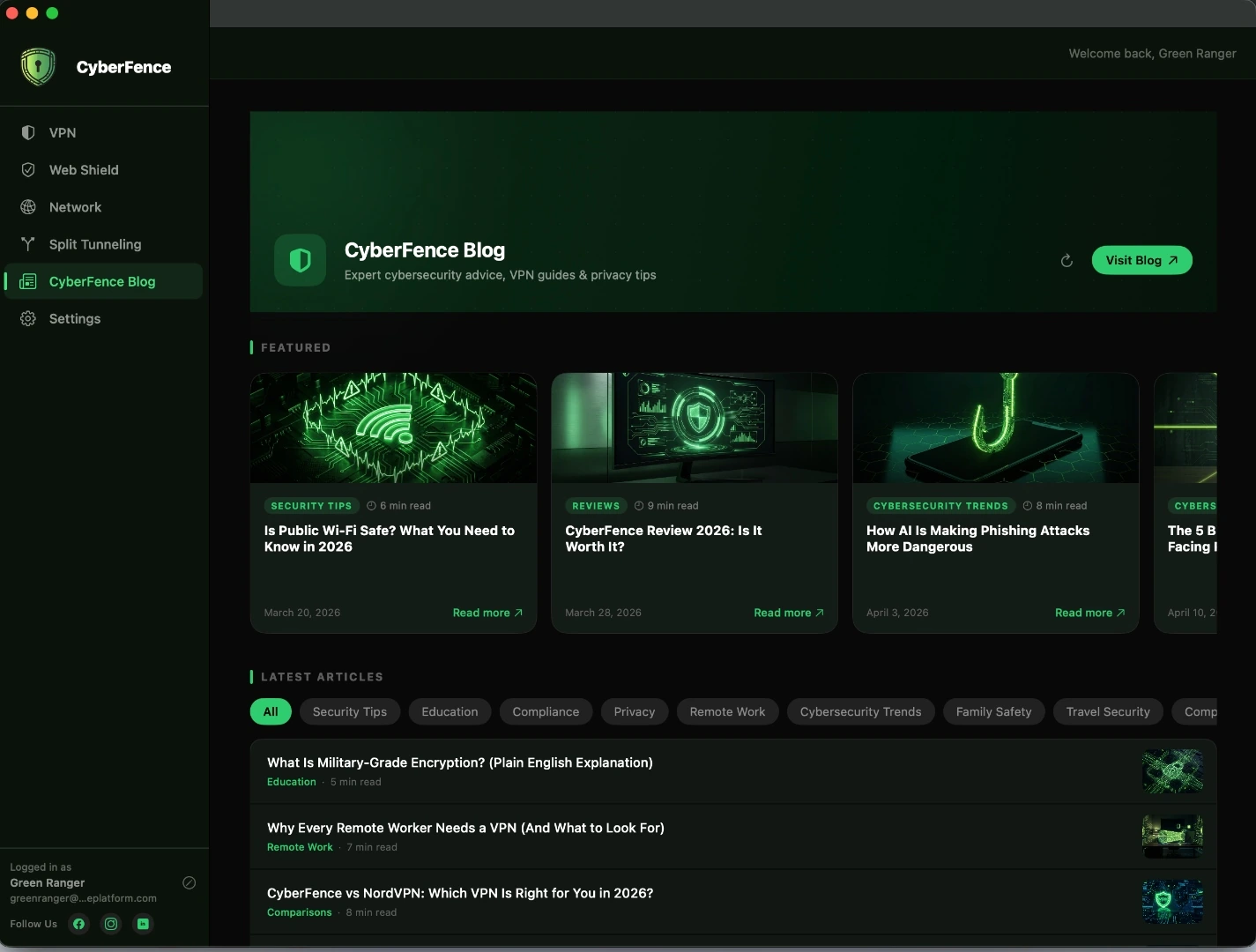
CyberFence Blog — Built In
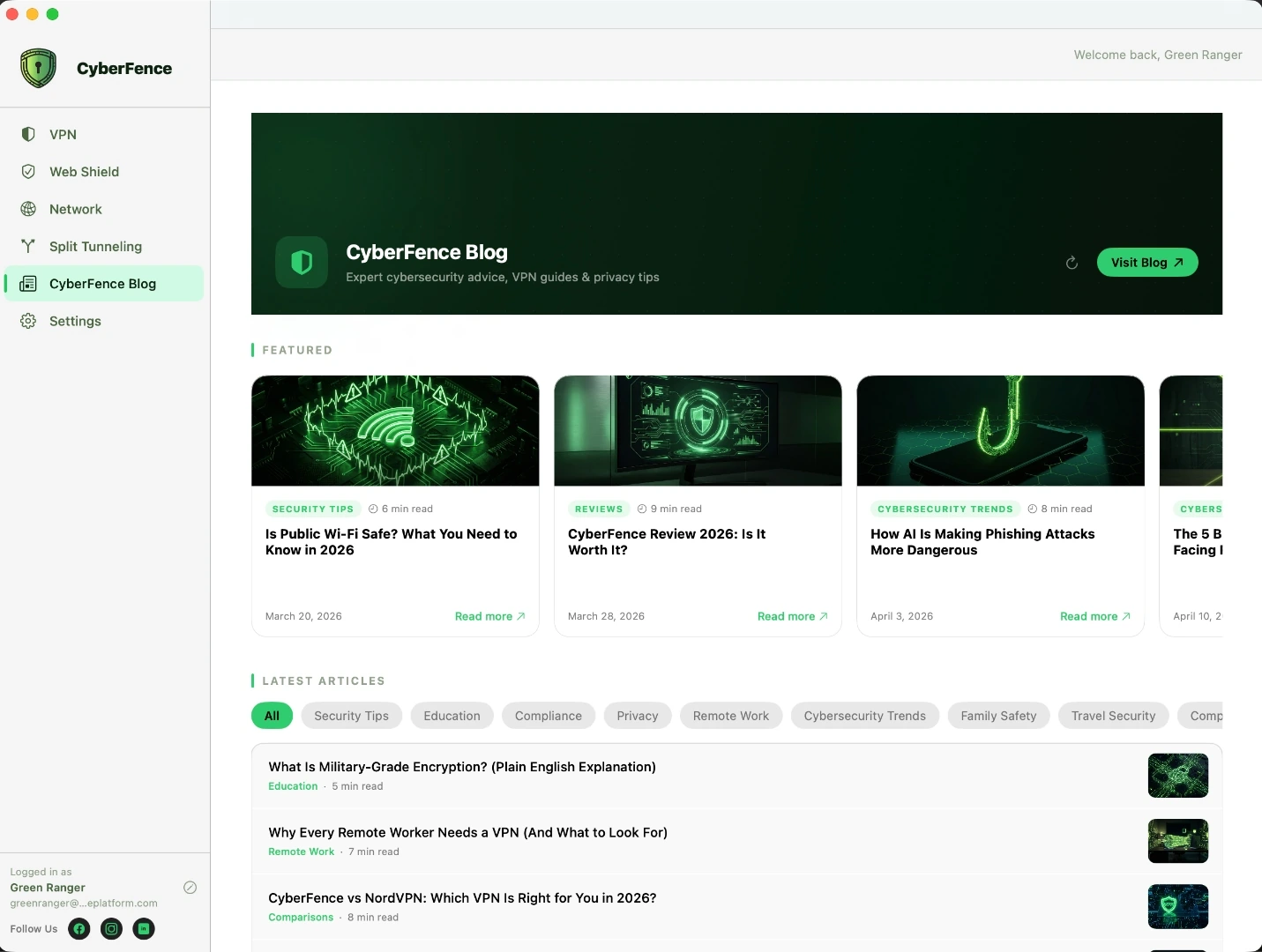
Security knowledge lives inside the app. The CyberFence Blog tab gives you direct access to featured guides, latest articles, and category-filtered content without leaving the app. Stay up to date on threats, features, and best practices.
- Featured articles curated inside the app
- Browse by category: Security Tips, Compliance, Education, Trends
- Latest articles with read-time estimates
- Opens full article in your browser with one click
- Refreshes automatically with new content
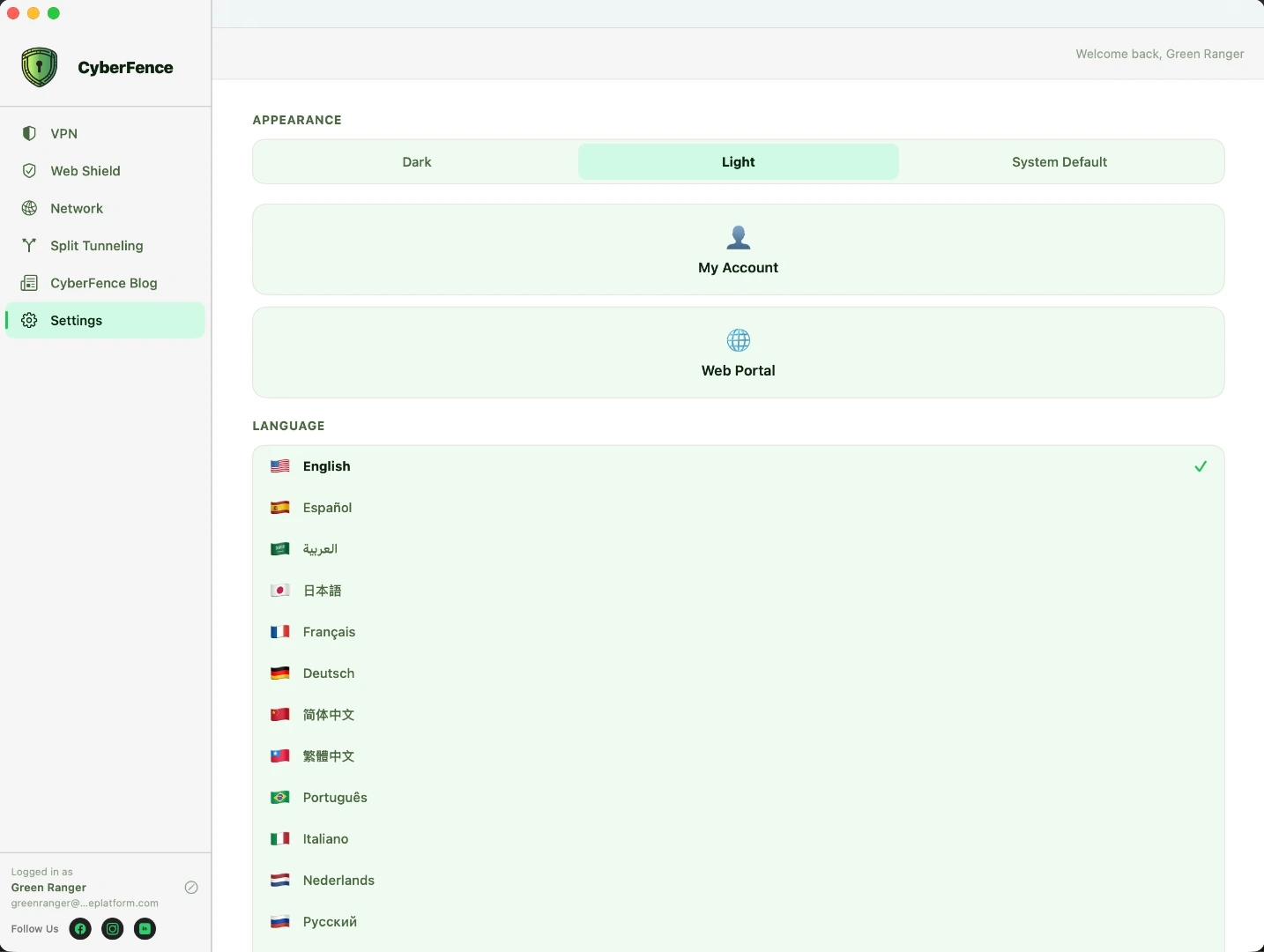
Settings & Personalization
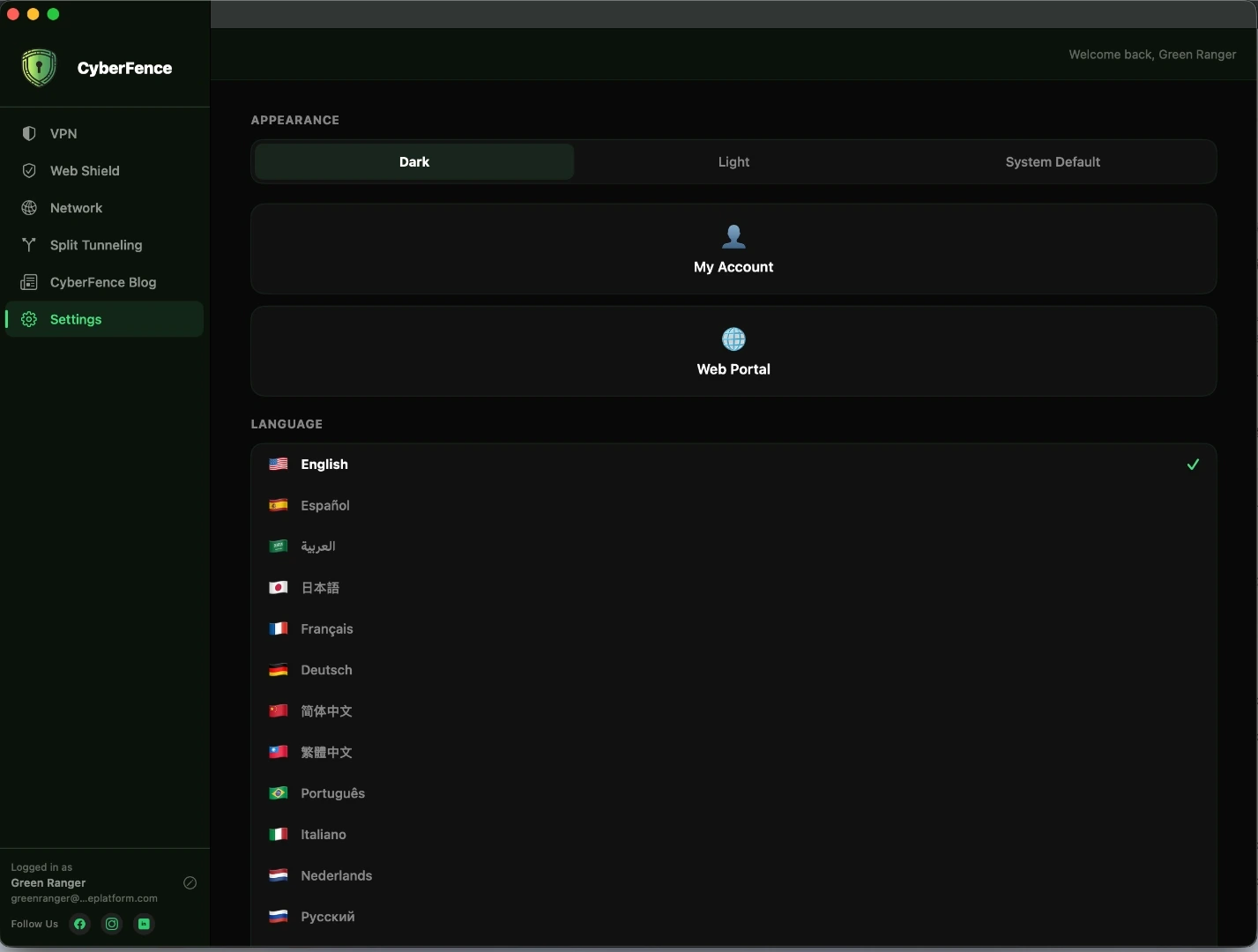
Full control over how CyberFence looks and behaves on your Mac. Switch between Dark, Light, or System theme to follow your macOS appearance preference, choose from 13 languages, and reach your account or the Web App in one click.
- Dark / Light / System theme — follows macOS appearance settings
- 13 languages: English, Español, Français, Deutsch, Português, Italiano, Nederlands, Русский, 简体中文, 繁體中文, 日本語, العربية, 한국어
- Login credentials stored in the macOS Keychain — never in plain text
- Account management shortcut — opens account settings instantly
- Web App shortcut — direct link to web.cyberfenceplatform.com
Also in the Mac App
Notification Center Integration
VPN connect, disconnect, and untrusted network alerts are delivered as native macOS notifications — respecting your Focus modes, Do Not Disturb, and notification grouping automatically.
Launch at Login
Starts automatically when your Mac turns on — protection is ready before you open a browser or anything else.
Auto-Connect on Launch
Connect to the VPN automatically every time you open the app — no manual step needed.
Trusted Network Detection
Auto-disconnect on trusted networks (home/office) and auto-connect the moment you join an untrusted one.
Menu Bar Status Icon
VPN connection state always visible in your menu bar — toggle on or off without ever opening the main window.
Keychain-Secured Credentials
Your login credentials are stored in the macOS Keychain — the same secure enclave used by Safari and every major Mac app. Never stored in plain text.
Privacy-First Permissions
CyberFence requests only the permissions it needs — VPN tunnel and network access. No microphone, no camera, no contacts, no location. Nothing it doesn’t use.
Focus Filter
Set CyberFence to connect automatically when Work Focus or any other Focus mode activates — stay protected the moment you go heads-down.
Sleep & Wake Reconnect
Your Mac wakes up and CyberFence reconnects automatically — no manual toggle, no gap in protection after the lid opens.
Connection History
A full log of your last 20 VPN sessions — server, duration, and connection times — so you always know when and how long you were protected.
Network Trust Query
Ask Siri “Is my network trusted in CyberFence?” and get an instant answer — whether your current Wi-Fi is in your trusted list, by name.
One Account, All Platforms
Mac Is One of Five.
Your CyberFence subscription works everywhere. The Mac app shares your account with iOS, Android, Windows, and the Web App — same login, same plan, same protection.


Download CyberFence for Mac
AES-256 encryption, Web Shield, split tunneling, menu bar control, and Breach Monitor. Built for macOS. Free trial — no commitment.
macOS 14 Sonoma & 15 Sequoia · Apple Silicon & Intel · Free Trial available

Get Protected Today
One account. All 5 platforms. Cancel anytime.
Please enter a valid email address.
Your CyberFence account will be created with this email. You'll sign in with it after purchase.
“Finally a VPN I trust for my practice — US-based, HIPAA-ready, and simple enough that my whole team actually uses it.” — Healthcare Practice Owner, Florida
Secured by RevenueCat · PCI-DSS Level 1 · Cancel anytime
Your account has been created
After purchase, open the CyberFence app and sign in — no need to create a new account.
Loading secure payment form…
Express checkout
Card declined or seeing an error? Most declines are your bank flagging a new charge — try again or call your card issuer. Still stuck? Email support@cyberfenceplatform.com and we'll respond within an hour.
Payments processed by RevenueCat (PCI-DSS Level 1). Your card data never touches our servers.
You're Protected.
Your CyberFence subscription is active. Check your email — we sent a link to set your password and download the app.
Also download on your other devices:
One account covers all your devices. Check your email for your password setup link.
Not ready for a VPN?
Protect the piece that matters most — your identity. Get alerted the moment your data shows up in a breach.
- 24/7 monitoring across billions of leaked records
- Instant alerts the moment your data is exposed
- Actionable next steps for every exposure
- Cancel anytime — no long-term commitment