Also on CyberFence: check your public IP and geolocation · compare CyberFence to other VPNs side-by-side .
Quick answer
Can someone at a coffee shop see your laptop?
Partly. Anyone sitting nearby can read your screen, and anyone on the same café Wi-Fi can try to watch where you go online or reach your laptop over the network. A VPN closes the Wi-Fi part by encrypting everything your laptop sends. It can't stop someone looking over your shoulder, so you need a couple of simple habits for that.
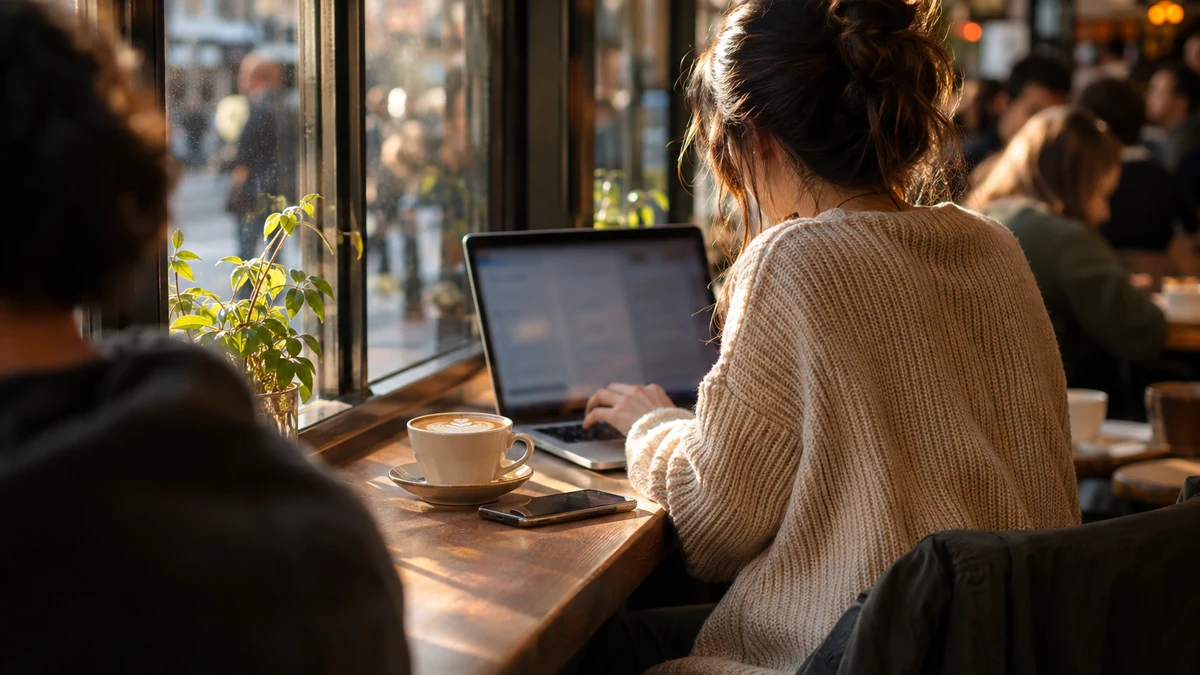
This question got a real-world answer last week. On November 18, 2026, the Justice Department announced the indictment of a Russian national who, prosecutors allege, was directed to visit a coffee shop near a Silicon Valley technology and defense company, "identify company employees, and photograph their laptop screens while they worked." He was also allegedly told to leave his own laptop at spots nearby so others could remotely access it and "attempt to collect information from company employees in the vicinity."
The charges are allegations, and most of us aren't targets of foreign intelligence. But the two methods described, looking at screens and using nearby equipment to collect data, are the same two ways anyone at a café can get at your information. Here's how each one works and what actually stops it.
Two Ways People Get at Your Laptop in a Café
It helps to separate the risk into two parts, because they need different fixes:
- What people can see. Your screen, your keyboard as you type a password, and the papers next to your laptop. This is old-fashioned "shoulder surfing," and no software stops it.
- What the network can see. Everyone on the café Wi-Fi shares the same network. Someone on it, or someone running a fake hotspot nearby, can try to see which sites you visit, push you to fake sign-in pages, or reach parts of your laptop you've left open to the network.
The good news: most websites now use HTTPS, so a stranger on the network usually can't read the contents of your banking or email pages. The FTC says that because of widespread encryption, connecting through a public Wi-Fi network is usually safe for ordinary browsing. The gaps are the sites you visit, the apps that don't encrypt well, fake networks, and anything your laptop shares on its own.
See how CyberFence protects you on shared Wi-Fi
Watch CyberFence encrypt a connection on hotel, airport and café Wi-Fi.
Watch the Hotel. Airport. Café. film
Select play to load YouTube, then start the film in the player. YouTube processes data when loaded; its privacy policy applies.
Watch on YouTube (opens a new tab)
Read the video transcript
Is this network safe to use? You ask it at every stop on a trip.
At the hotel, turn on CyberFence, and your laptop's connection is encrypted through US-based servers. At the airport, the Network view on your phone shows the network you're on, and whether it's secured. At the café, one tap connects your iPad.
Sign in on each device with the same account.
Hotel. Airport. Café. CyberFence comes with you. Get protected today.
How a VPN Handles the Network Side
When CyberFence is connected, your laptop wraps its traffic in an encrypted tunnel before it leaves the machine. Other people on the café network, and the café's own router, see only encrypted data going to a CyberFence server. That means:
- The sites you visit stay private from everyone else on the Wi-Fi.
- Your DNS lookups travel inside the tunnel, so a tampered network can't quietly redirect them.
- A fake hotspot gets much less out of you. If you join a look-alike network by mistake, your traffic is still encrypted before it reaches it.
Close What Your Laptop Shares on Its Own
A VPN protects traffic going out to the internet. It's also worth making sure your laptop isn't advertising itself to the people around you:
- Mark café Wi-Fi as public. When Windows asks, choose Public network. That setting is designed to keep your PC from being discoverable to other devices on the network. Macs don't ask, so turn off File Sharing and Screen Sharing in System Settings if you don't need them.
- Limit AirDrop. Apple's AirDrop guide says you can set it to Contacts Only or Receiving Off at any time. On a Mac, the options are Contacts Only or No One. "Everyone for 10 Minutes" on iPhone switches back on its own.
- Turn off Bluetooth if you're not using headphones or a mouse.
- Don't plug in unknown USB drives or charge from a café's public USB port with a data cable.
How to Stop People Reading Your Screen
This is the part a VPN can't touch, and it's what the Justice Department case describes first. A few habits cover most of it:
- Pick your seat. Sit with your back to a wall or a window, not facing a walkway or a long counter.
- Use a privacy filter. These inexpensive screen covers make your display hard to read from an angle. Some laptops also have a built-in privacy screen mode.
- Lower the brightness and zoom out a little when you're working on something sensitive.
- Lock your screen every time you stand up, even for a minute: Windows key + L on a PC, Control + Command + Q on a Mac.
- Save sensitive tasks for later. Payroll, medical records and tax returns are better done at home than at a busy café table.
- Watch your passwords as you type. A password manager that fills in sign-ins means there's nothing to watch.
Your Phone Is Exposed Too
Most people at a café have a phone on the table next to the laptop, and it joins the same Wi-Fi. It's easy to forget, because the phone does its work in the background: email syncing, banking alerts, messaging apps and photo backups all run over the café network while you're focused on the laptop.
The same rules apply. Turn CyberFence on for the phone as well as the laptop, since one plan covers both. Keep AirDrop limited, and be careful with notifications that show message previews on the lock screen, which anyone at the next table can read. If you'd rather not use café Wi-Fi on your phone at all, your own cellular data is a network only you are on.
A Two-Minute Café Checklist
- Ask staff for the exact Wi-Fi name and join only that network. Look-alike names are a common trick.
- Accept the sign-in page, then turn CyberFence on before you open email, banking or work apps.
- Choose Public network on Windows, or confirm File Sharing is off on your Mac.
- Set AirDrop to Contacts Only on your laptop and phone.
- Pick a seat with your back to a wall and put on your privacy filter.
- Lock your screen every time you get up, and take the laptop with you if you'll be gone more than a moment.
- Forget the network when you leave so your devices don't rejoin it, or a look-alike, automatically next time.
If You Work for a Company
The people allegedly targeted in this case were employees of a specific company. If you carry work information, a few more points apply:
- Use the protection your employer gave you. If your work laptop has a company VPN, use it as instructed. CyberFence is for your personal laptop and phone.
- Don't let strangers start work conversations. Someone friendly asking where you work or what you're building can be gathering information.
- Report anything odd. If someone seems to be photographing screens or following people from your office, tell your security team. That's how cases like this get noticed.
- Keep badges and lanyards out of sight. A company badge on the table tells anyone nearby exactly where you work, which is the first thing someone gathering information wants to know.
What a VPN Won't Do
A VPN can't stop someone reading your screen or watching you type, and it won't close file sharing or AirDrop for you. It doesn't stop phishing on its own, and Web Shield blocks known malicious sites, not every new one. It doesn't hide your activity from your employer on a work-managed laptop, and the VPN provider can see connection details. And a VPN doesn't make you anonymous.
Frequently Asked Questions
Can someone on the same coffee shop Wi-Fi see my screen?
Not your screen itself. Someone on the same network can try to see which sites you visit, reach shared folders or services your laptop exposes, or lure you to a fake hotspot. Seeing your actual screen takes a look over your shoulder or a camera, which is why a privacy screen and good seat choice matter.
Does a VPN stop people from seeing my laptop screen?
No. A VPN encrypts the data your laptop sends over Wi-Fi. It does nothing about someone reading your screen from the next table. For that, use a privacy filter, sit with your back to a wall, and lock your screen when you step away.
Is it safe to work from a coffee shop?
It can be, with a few habits: connect to the café's real network, turn CyberFence on, mark the network as public so your laptop isn't discoverable, keep AirDrop and file sharing limited, and be aware of who can see your screen. If your employer gave you a work laptop, follow its rules first.
Should I turn off Bluetooth and AirDrop at a café?
Limit them. On iPhone and iPad, set AirDrop to Contacts Only or Receiving Off. On a Mac, choose Contacts Only or No One. Turn Bluetooth off if you aren't using headphones or other accessories.
Read Next
Bottom line
At a coffee shop, your laptop is exposed two ways: to the people around you and to the network you share with them. CyberFence handles the network side by encrypting everything your laptop sends. The rest is habits: choose your seat, use a privacy filter, limit AirDrop and file sharing, and lock your screen whenever you step away.
Want to go deeper? Read our free IP address checker , the CyberFence competitor comparison hub , or CyberFence plans and pricing .